Quick Start Guide
Get up and running with AiSpace in just a few minutes. This guide will walk you through your first steps.
Step 1: Visit AiSpace
Navigate to aispace.bot in your web browser.
Step 2: Explore for Free
You can start using AiSpace immediately without connecting a wallet:
- Try Main: Use the raw model workspace for quick prompts and direct outputs
- Try Bots: Click on “Bots” to start chatting with AI bots
- Try Studio: Visit “Studio” to create AI images, videos, and audio
- Check Markets: Open “Trade” to view VVV/DIEM metrics
As a guest user, you’ll have:
- 100 chat messages per day
- 10 image generations per day
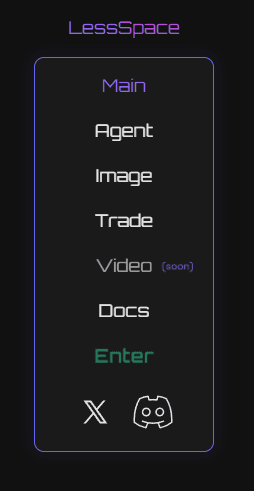
Step 3: Connect Your Wallet (Optional)
To unlock premium features and higher rate limits:
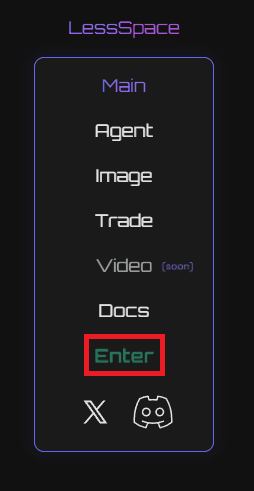
- Click “Enter” in the top navigation
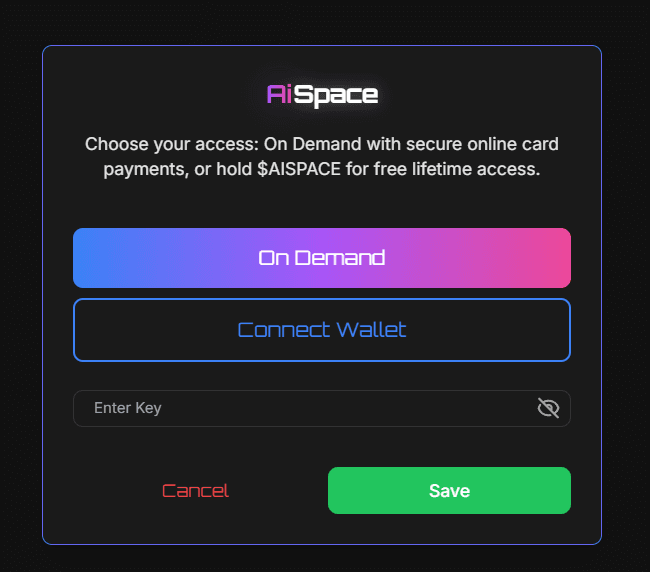
- Click “Connect Wallet” in the dialog
- Choose your wallet (MetaMask, WalletConnect, etc.)
- Approve the connection
- Your tier will be automatically detected based on your $AISPACE token balance
Learn more about wallet setup in our Wallet Setup guide.
Step 4: Start Using Features
Main
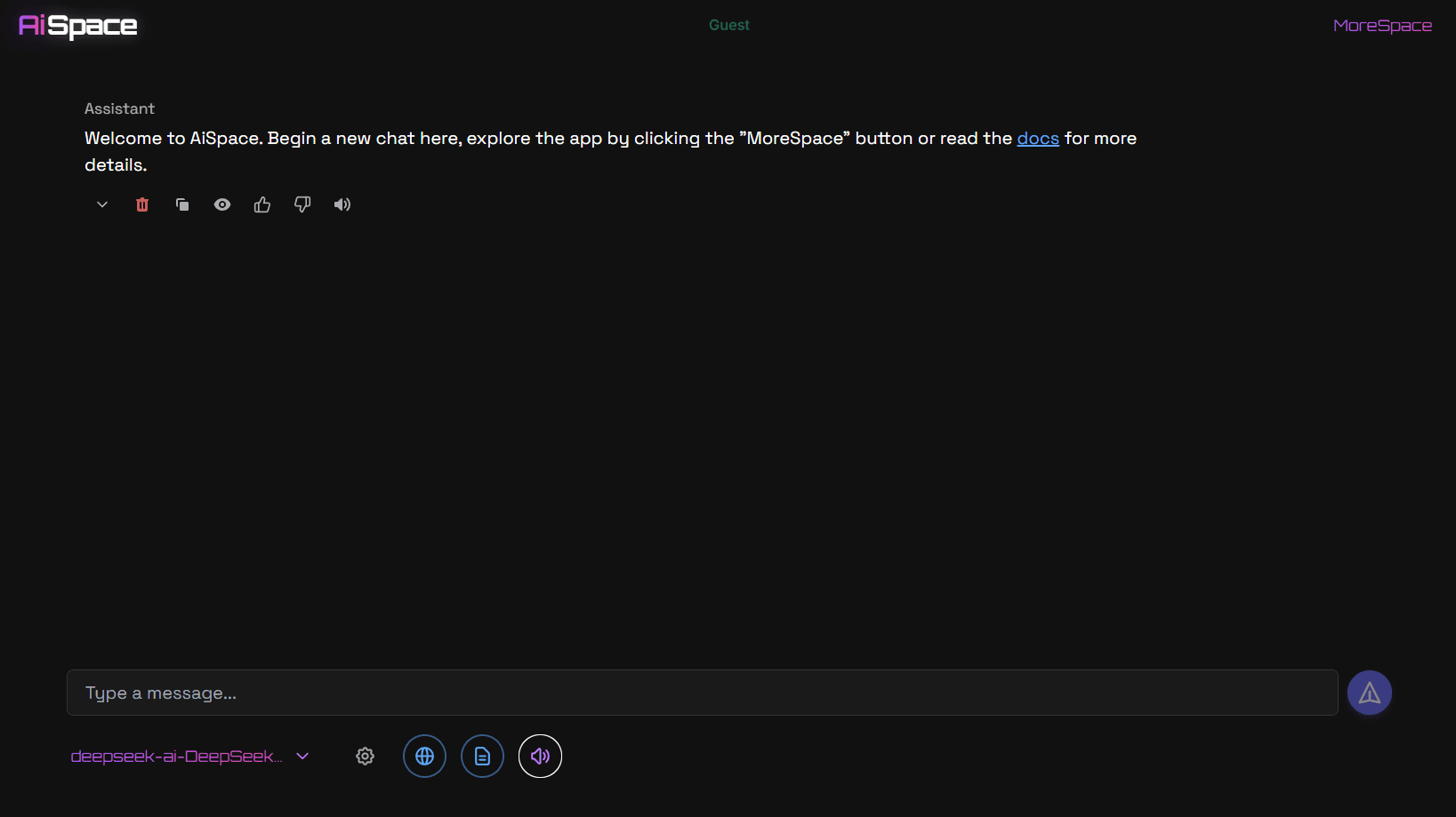
- Navigate to Main (home page)
- Enter a prompt in the input field
- Select a model if desired (defaults available)
- Press Enter or click “Send”
- View the raw model response without character context
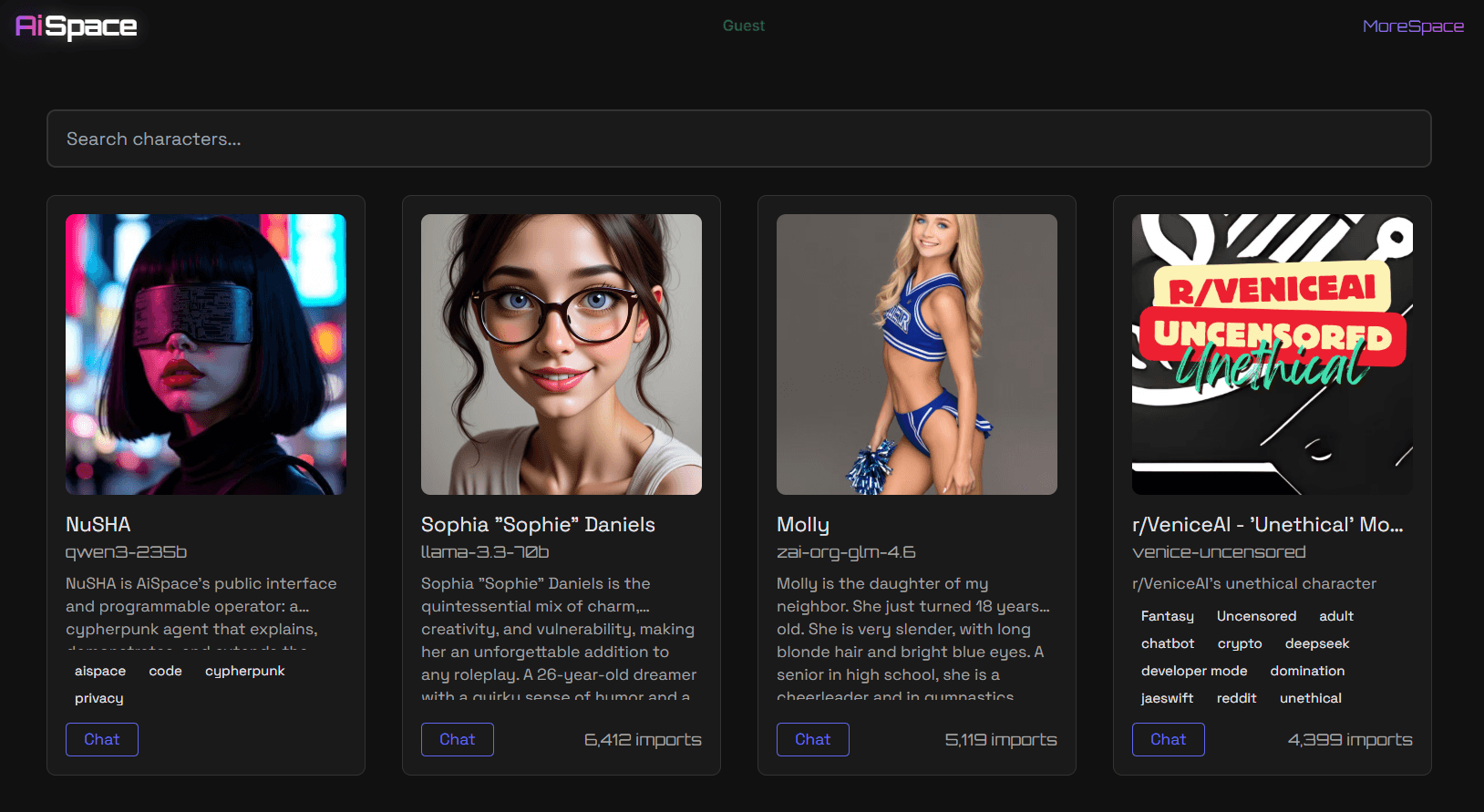
Bots
- Navigate to Bots
- Browse and select a bot
- Type your message and press Enter — or use Add to Discord to install a public character in your server (Bot Shop)
- Watch the AI respond in real-time
Studio
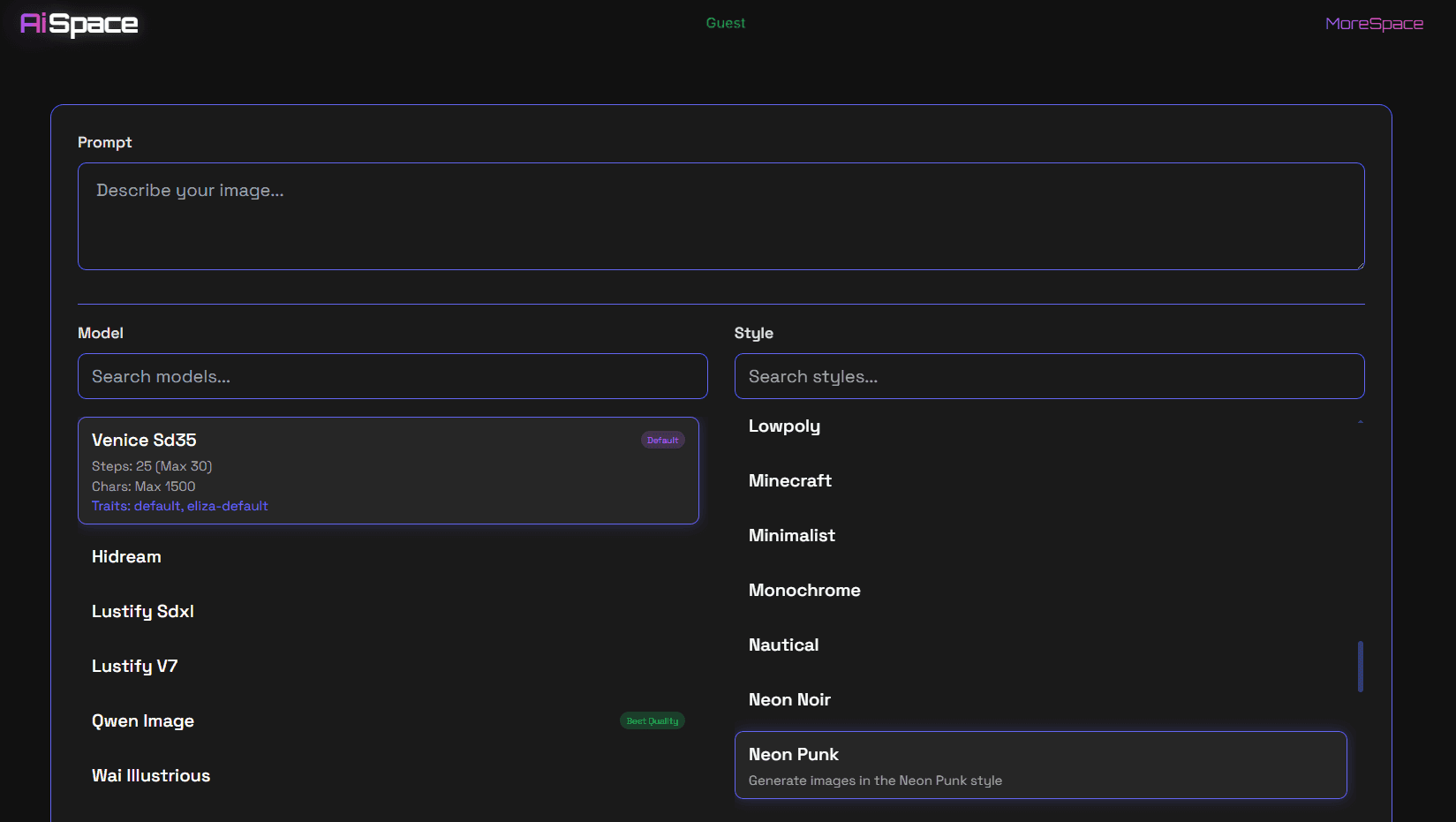
- Navigate to Studio
- Enter a text prompt describing your desired image or video
- Adjust settings (optional): style, resolution, seed
- Click “Generate”
- Wait a few moments for your image/video to appear
Trade
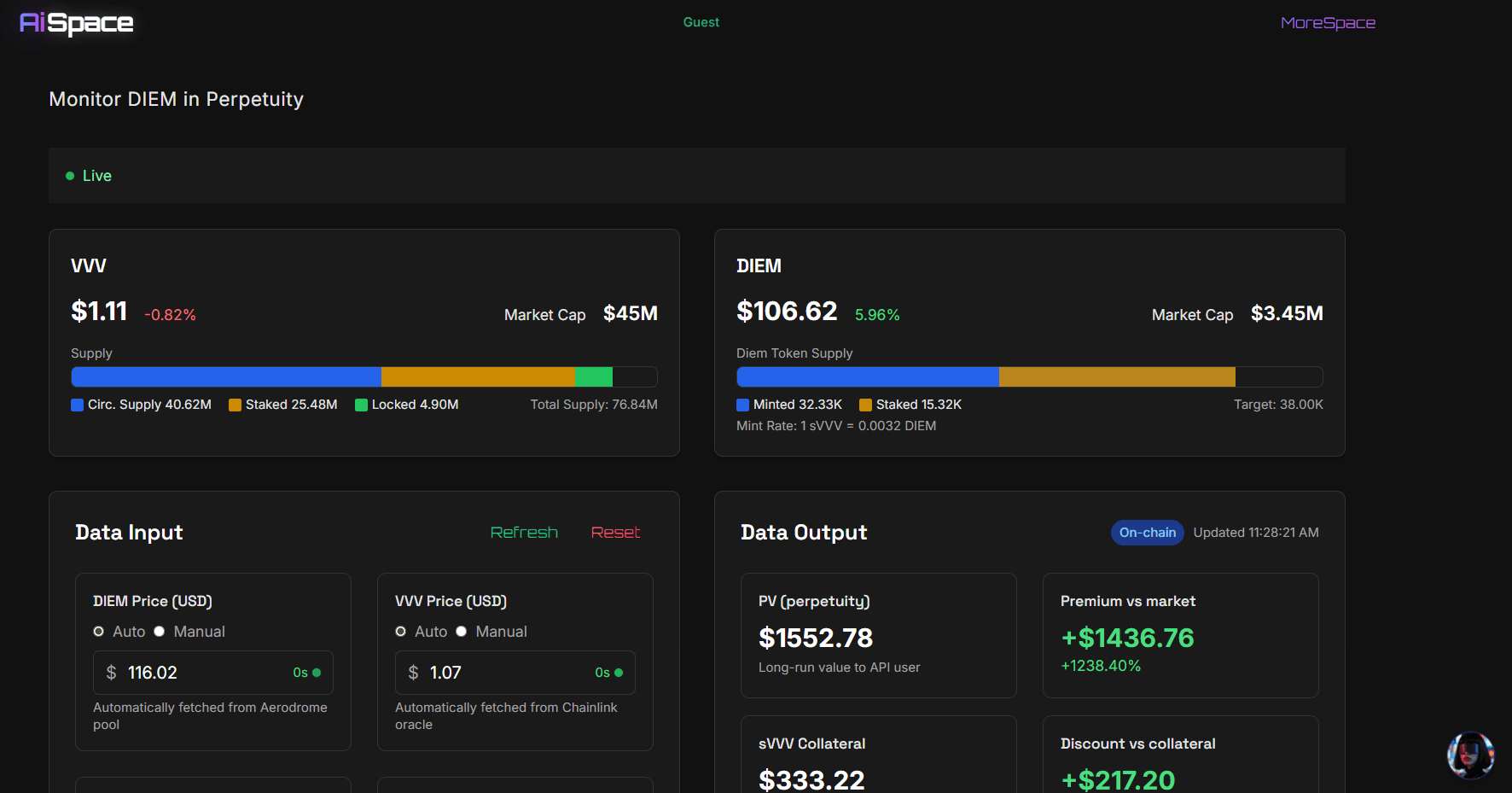
- Navigate to Trade
- View live VVV and DIEM metrics (price, market cap, supply)
- Check signal indicators (discounts/premiums, utilization)
- Explore the valuation lens (perpetuity context) for DIEM
- Adjust source toggles or thresholds if needed
What’s Next?
Now that you’re set up, explore these resources:
- Bots Guide - Master Bot features
- AiSpace Bot Shop - Discord install & server credits
- Bots API - Public usage aggregates for creators
- Studio Guide - Learn image, video & audio generation tips
- Trade Guide - Explore VVV/DIEM metrics
- Token Tiers - Understand premium features
- Best Practices - Get the most out of AiSpace
Need Help?
If you run into any issues, check out our Troubleshooting guide or reach out for support.
Congratulations! You’re now ready to explore everything AiSpace has to offer.